This guide shows how to migrate from WordPress to Webflow without losing traffic: rebuild the design, move the content into CMS Collections as CSV files, and redirect every changed URL before the domain switches.
Webflow's migration overview says: "There's no automated way to convert a site from another platform into Webflow." Without a redirect, an old address sends visitors to a 404 page, per Webflow's redirect guide.
It is for B2B marketing leads, developers, and SEO managers running the website migration in-house, with a freelancer, or with a Webflow agency. Still comparing platforms? Start with Webflow vs WordPress.
{{key-takeaways}}
What moves from WordPress to Webflow, and what you rebuild
WordPress content moves to Webflow; the theme, the layouts, and the plugins do not.
Table 1. What moves from WordPress and how it reaches Webflow
| Part of the site | How it reaches Webflow |
|---|---|
| Posts and custom post types, their custom fields, categories, and tags | exported, then imported as CSV files into Collections; taxonomies get Collections of their own |
| Images and other files | not in the export file; image fields import by URL, file fields are filled by hand |
| Static page text (About, Contact) | re-entered in the Webflow Designer |
| Theme, layouts, styles, and interactions | rebuilt by hand from the old site |
| Plugin features | rebuilt, handed to another tool, or dropped |
Sources: Webflow Help Center (migration overview, CMS import); WordPress.org Tools Export screen; WP-CLI wp export; Webflow's WordPress Migration Checklist; read September 2026.
Common challenges when migrating from WordPress to Webflow
Five problems come up: the content model, the theme, redirects, media, and plugins.
Content structure incompatibility
Post types and taxonomies must become Collections before the import, and each custom field needs a field to land in (step 3).
Need for a site rebuild
Every layout is rebuilt; the theme does not move (step 4).
SEO disruptions
Moved pages whose old URLs return a 404, or old URLs that all land on the home page, put SEO rankings at risk (step 6).
Content and media that do not carry over
Media files, file fields, embeds, and tables need manual work (steps 2 and 5).
Plugin features with no Webflow equivalent
Each plugin's job needs a new owner (step 1).
The WordPress to Webflow migration process in 9 steps
Keep the migration steps in order: step 1's URL list feeds step 6, and step 3's Collections come before step 5.
Step 1: Plan your migration strategy
Assess and map your current website
Inventory the existing WordPress site in four parts:
- Content types: posts, pages, WordPress custom post types, taxonomies, and the custom fields on each.
- Plugins: each active plugin, its job, and what replaces it in Webflow, if anything. A membership plugin needs a third-party tool: Webflow ended its own feature on January 29, 2026, per its User Accounts sunset notice.
- Forms and integrations: each form and where it submits, plus the third-party integrations and scripts the site relies on.
- URLs: Google's guide to moving a site points to your sitemaps, server logs or analytics, the Links to your site feature in Search Console, and the CMS itself, and asks you to include the URLs of embedded media such as images and videos.
Note the permalink pattern too; it decides the step 6 redirect rules. The Settings Permalinks screen documentation lists options such as Plain (/?p=123) and Post name.
Then decide whether the URL structure stays or changes. Every changed path becomes a row in the redirect sheet, and Google advises that pages you drop return 404 or 410 on the new site. In our migrations, nothing downstream starts until the redirect sheet and the plan are locked.
Define your website goals
Record your SEO performance before the switch:
- Traffic: your top pages and their organic traffic.
- Search: keyword rankings for the pages that matter.
- Leads: form submissions per month.
Google's guide asks you to monitor traffic on both the old and new URLs, which needs this baseline.
Back up your WordPress website
Take a full backup of the WordPress files and database before you export anything, and set the content freeze date at the same time. Webflow's WordPress Migration Checklist notes that the import may need to run again near the switchover "to catch any content changes made after the initial export." Posts and edits made after the first export go into that second pass.
Step 2: Export content from WordPress
Export using WordPress built-in export tools
In the WordPress dashboard, Tools > Export writes one WXR file in XML format with your posts, pages, custom post types, and taxonomies, custom fields included, per the Tools Export screen documentation. You can filter it by category, author, date range, and status. Webflow imports CMS data as CSV, so Webflow's WordPress migration article suggests an XML to CSV converter.
Export media files
The XML does not carry the files: the wp export reference states that WXR files leave out "the attachment files themselves." Copy the media files from your hosting and add image URLs to the step 1 list.
Organize your data
Keep posts, media, and metadata apart; then choose a route:
- One CSV per post type: Webflow's checklist asks for exactly that and names WP All Export as a popular export tool; the WP All Export plugin writes custom CSV, XML, and Excel files.
- A shortcut for a simple blog: the free WP to Webflow app transfers posts, categories, and tags from your WordPress site's live URL. For custom post types, use the CSV route.
Step 3: Set up your new Webflow project
Create a Webflow account and a project
Choose the Site plan when you create the new Webflow project. Step 6 needs a paid plan twice: Webflow's redirect guide requires a paid Site or Workspace plan for 301 redirects, and the SEO title and meta description guide sets the same condition for metadata.
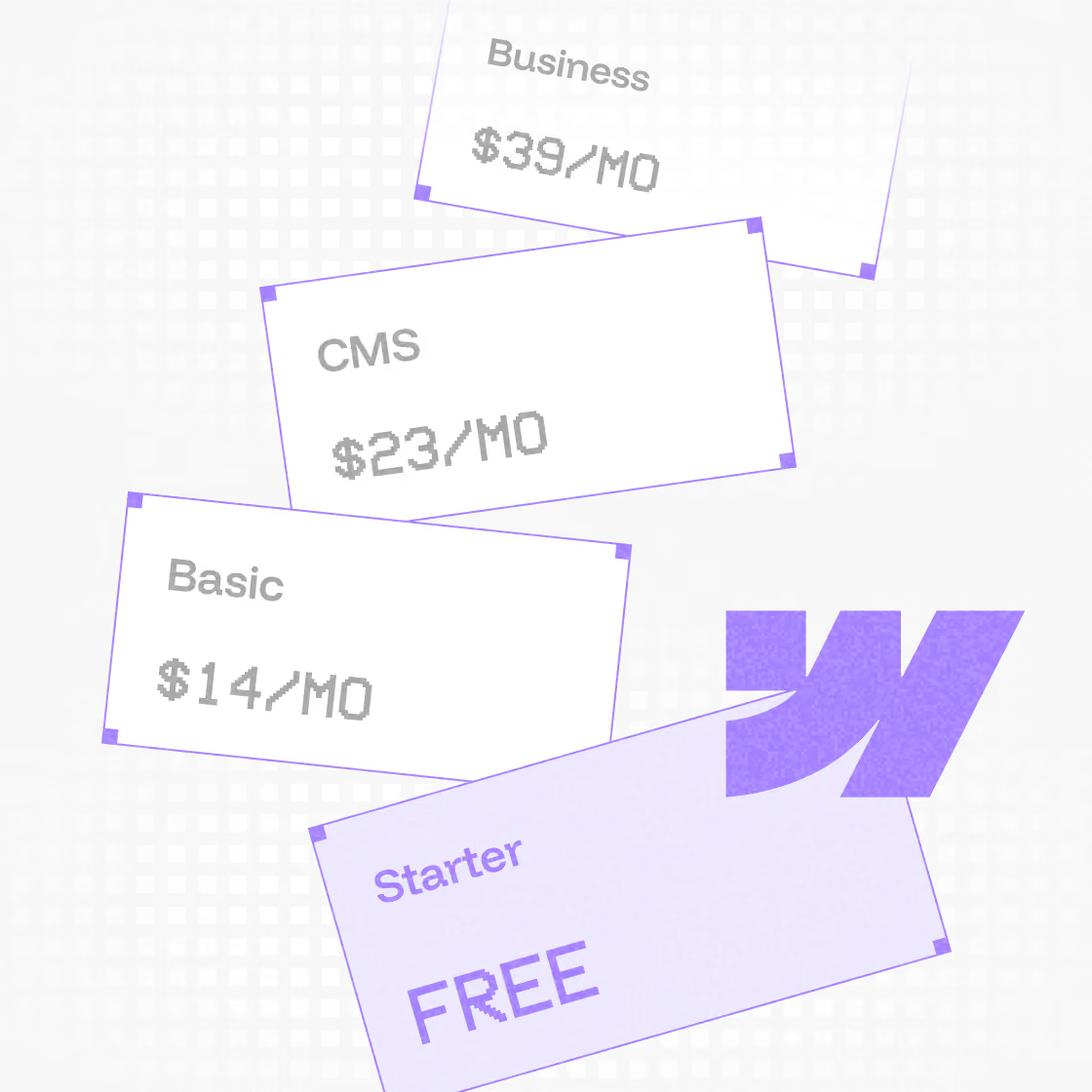
Check the item limit before the import, as Webflow's WordPress article advises. In May 2026, Webflow combined the CMS and Business plans into a Premium Site plan with 20,000 CMS items, 40 Collections, and 300 static pages, per its article on the May 2026 plans. When the 20,000-item limit applies depends on the plan:
- New plan purchase: at once.
- Existing CMS or Business site: at its first renewal or billable change starting June 29, 2026.
- Existing CMS or Business site in a Freelancer or Agency Workspace, or on legacy pricing from 2022 or earlier: at its first renewal or billable change starting November 16, 2026.
- Basic or Ecommerce site: no move to Premium; the Ecommerce plans are unchanged.
For prices and what each plan includes, see Webflow pricing explained.
Model the CMS before you import
Create each Collection before its CSV goes in: one per post type, plus Collections for categories and tags, as Webflow's checklist does. The importer then maps each column to a field or creates the field. Three rules from Webflow's CMS import guide shape the fields:
- Slugs: reference fields match items by slug, so a custom slug has to be in the CSV.
- Multi-references: several values share one cell, separated by semicolons.
- Option fields: each unique value becomes an option, up to 100.
Import the Collections that others point to, such as categories and authors, before the posts that reference them. The introduction to the Webflow CMS explains Webflow CMS Collections, fields, and templates.
Step 4: Recreate your website design
Choose your design approach
Google's guide keeps a CMS change and a new layout apart: "do them one at a time." So migrate with the current design first and redesign later; if you redesign anyway, keep step 1's URL decisions fixed.
Design pages in Webflow
Layouts built with WordPress themes and page builders are recreated by hand, as Webflow's migration overview explains. Build the Collection templates first, since every imported post renders through them, then the static pages. Keep custom code for jobs that WordPress plugins did and Webflow elements cannot.
Test for responsiveness
Check each template and static page at every breakpoint before content goes in; the Webflow responsive design guide walks through them.
Step 5: Import content into Webflow
Utilize CSV files for bulk imports
Import once the step 4 build is finished; in our migrations, content and redirects wait for the finished Webflow build. Then follow Webflow's WordPress article:
- Open: the Collections panel and the Collection you created in step 3.
- Import: the CSV into it.
- Map: each column to a field, or create the field.
The CMS import guide adds four points:
- Format: CSVs exported from WordPress are typically already compatible.
- Size: each file can be up to 4 MB, so split larger ones.
- Backup: accept the pre-import backup, which Site settings > Backups restores.
- Drafts: rows with an empty or unmatched required reference import as drafts, so review them.
Add non-CMS content manually
Static pages such as About and Contact are recreated in the Designer. In our migrations, records move by script, and typing page text is separate work. Two more tasks stay manual:
- Files: upload files for file fields after the import, since no CSV data maps to them.
- Media: add media to the Assets panel, which takes images up to 4 MB and documents up to 10 MB.
Test the imported content
Check sample items in each template:
- Images: images imported by URL get no responsive variants (srcset and sizes), so optimize images first or upload the key ones in Webflow.
- Embeds and tables: Webflow may clean embeds of elements it does not support, per the import guide, and tables and dividers need custom code, per the rich text element overview.
- Shortcodes: search the CSV for bracketed shortcodes before the import and replace each one; the plugins that rendered them stay on WordPress.
- Links: update links inside post bodies to the new URLs, as Google's guide advises.
Step 6: Redirect URLs to preserve SEO
Map old and new URLs
Two rules from Google's guide and one from Webflow's shape the URL mapping in the step 1 redirect sheet:
- Matching pages: point every old URL at its counterpart rather than pointing many URLs at one irrelevant page such as the home page, which Google says may be treated as a soft 404.
- One hop: redirect straight to the final URL. Googlebot can follow up to 10 hops, but Google advises keeping chains short, ideally no more than three.
- Locales: redirects do not apply to localized slugs, per Webflow's redirect guide, so a path such as
/es/old-urlneeds its own rule.
Set up 301 redirects
Redirects carry the value Google gave the old URLs: 301 and other permanent redirects "don't cause a loss in PageRank." In Webflow, they live in Site settings > Publishing > 301 redirects.
For a long list, import a CSV of up to 16 MB with two columns, old paths and new paths; one invalid row fails the whole import. The import overwrites every existing redirect. Export the current list first, add your rows to that file, and import it.
Imported redirects take effect only after a publish. Webflow's guides do not say whether redirects run on the webflow.io staging subdomain, so test them live in step 9.
Write the rules WordPress URLs need
Webflow's redirect guide sets the syntax, and four of its rules matter for WordPress URLs:
- Folders: a capture group
(.*)in the old path and%1in the new one move a whole folder. Webflow sets no hard cap on redirects but recommends 1,000 at most and wildcards where possible. - Order: rules run oldest first, so add specific redirects before broad wildcards.
- Escaping: the guide says to escape special characters "in all Old path URLs" with a
%, and its list includes?,=, the hyphen, and the underscore. A hyphenated slug gets a%before each hyphen, as in/sign%-up, the example in Webflow's User Accounts sunset notice. Only the old path is escaped, and the guide's own examples leave the capture group(.*)unescaped. - Query strings: Webflow drops a slash that sits right before a query string, so write the old path without it.
Table 2. Example redirect rules for WordPress URLs
| Old WordPress URL | Old path in Webflow | Redirect to path |
|---|---|---|
/?p=123 (Plain permalink) |
%?p%=123 |
/blog/new-post |
/my-old-post (Post name permalink) |
/my%-old%-post |
/blog/my-old-post |
/news/launch (one post, added before the wildcard) |
/news/launch |
/product/launch |
any other post in /news/ |
/news/(.*) |
/blog/%1 |
Sources: Webflow Help Center, How do I set up redirects in Webflow? and User Accounts sunset notice; read September 2026. Note. Worked examples with placeholder paths.
Carry over SEO titles and descriptions
Set meta titles and meta descriptions per page in Page settings > SEO settings, and for Collection pages as a pattern built from fields. Copy any values an SEO plugin held, and its structured data, into the URL sheet. Every new URL should also carry a self-referencing canonical tag, per Google's guide. The guide to Webflow SEO and site settings covers the rest.
Step 7: Configure Webflow hosting and domain
Connect your domain name
Prepare the domain now; the switch comes in step 9. Webflow's publishing guide requires domain verification before you can publish to a custom domain. Webflow's custom domain guide lists three records for your DNS provider: an A record for @, a CNAME record for www, and a TXT record for _webflow that verifies ownership. Copy the values from Site settings > Publishing > Production, since they can differ from site to site.
Leave the MX records alone: Webflow does not host email, per its hosting overview.
Step 8: Review comprehensively
Conduct quality assurance testing
Publish to the webflow.io staging subdomain only, and keep that subdomain hidden from search engines while you test; the publishing guide covers both. Then check the points below and run the Webflow SEO checklist on the staging site:
- Forms: each one submits, and the entries reach the tool they reached on WordPress.
- Analytics: Google Analytics and any other tags fire on the new Webflow site.
- Templates: several entries in each Collection render with their images, embeds, and tables.
- Links: internal links use the new URLs, with no broken links left.
- Search Console: keep verification working, as Google asks: paste the verification ID from Google's HTML tag, or your existing one, under SEO > Google site verification, per Webflow's Google site verification guide.
Get feedback from stakeholders
Share the staging link with each part's owners and set a cut-off for fixes before launch.
Step 9: Launch and maintain
Publish the website
Launch in this order:
- Freeze: stop content changes on WordPress on the date set in step 1.
- Re-import: re-run the import for anything published or changed since the first export, as Webflow's checklist suggests.
- Domain: add the records from step 7. Then click Verify domain in the site settings. Allow up to 48 hours for the change to spread to all locations, per Webflow's custom domain guide.
- Publish: publish to the custom domain and test a sample of old URLs,
?p=addresses included. - Keep WordPress: leave it and its hosting plan running until the new site passes those checks.
Track SEO in Search Console
Google's guide sets the routine:
- Sitemap: send Google Search Console the new sitemap.
- Change of Address: use the tool only when the domain or subdomain changes.
- Time: a small- to medium-sized site can take a few weeks for most pages to move, and visibility may fluctuate meanwhile.
- Redirects: keep them "for as long as possible, generally at least 1 year."
- Traffic: compare old and new URLs in analytics against the step 1 baseline.
Train a maintenance team
Teach the editors the Collections, the fields, and the publishing workflows they will use instead of the WordPress post editor.
No Webflow team in-house?
Our Webflow maintenance services cover updates and fixes after launch →
More migration guides
Moving from another platform? See the Contentful to Webflow migration guide and the Squarespace to Webflow migration guide.
WordPress to Webflow migration checklist
One check per step of the WordPress to Webflow migration guide above: rows 1 to 8 before launch, row 9 at launch.
Table 3. One check per step
| Step | Done when |
|---|---|
| 1. Plan | inventory, URL list, and baseline done; backup and freeze date set |
| 2. Export | one CSV per post type; media copied separately |
| 3. Set up | the paid Site plan fits your item count; every Collection exists |
| 4. Design | templates and static pages built and responsive |
| 5. Import | every CSV in, drafts resolved, samples checked |
| 6. Redirect | every changed URL redirected to its matching page; SEO titles, descriptions, and canonical tags set |
| 7. Domain | A, CNAME, and TXT values noted; MX records untouched |
| 8. Review | staging checks pass; stakeholders signed off |
| 9. Launch | content re-imported, domain verified, sitemap submitted, and redirects set to stay at least a year |
Sources: steps 1 to 9 above; Google Search Central, How to move a site.
Conclusion
Webflow's own overview calls the move a rebuild. It is finished when every old address leads to its new page, and the pages that mattered before the switch bring in traffic and leads again. Questions about your move? Ask the Foursets team.
{{post-cta}}
Frequently Asked Questions
Does Webflow import the WordPress XML export directly?
No. WordPress exports XML, and Webflow's importer takes CSV, so Webflow's WordPress migration article suggests an XML to CSV converter. An export plugin that writes CSV, such as WP All Export, skips the conversion. Webflow's checklist advises one CSV per post type.
Do I lose any data when I move WordPress content to Webflow?
Not if you plan for the manual parts. The export carries no media files, per the wp export reference. In Webflow, file fields are filled by hand, images imported by URL get no srcset, and embeds may be cleaned up, per the CMS import guide.
Does the WordPress export include my images?
No. WXR files do not include "the attachment files themselves," says the wp export reference. Copy the media from your hosting, and import images by URL only if they are already sized and optimized, as the CMS import guide advises.
How do I move WordPress categories and tags into Webflow?
Create a Collection for categories and one for tags, import them first, then import the posts that reference them. Webflow's WordPress Migration Checklist moves taxonomies into Collections. References match on slugs, and multi-reference values are separated by semicolons, per the CMS import guide.
How many CMS items can I import into Webflow?
Up to 20,000 on the Premium Site plan, per Webflow's article on the May 2026 plans. An existing CMS or Business site gets it at its first renewal or billable change starting June 29, 2026. For a site in a Freelancer or Agency Workspace or on legacy pricing from 2022 or earlier, the date is November 16, 2026.
Can I import 301 redirects into Webflow from a CSV file?
Yes. In Site settings > Publishing > 301 redirects, import a CSV of up to 16 MB with two columns, old paths and new paths, per Webflow's redirect import guide. The import replaces every existing redirect, so export the current list and append your rows to it.
How do I redirect old WordPress URLs that use ?p= IDs?
Escape the question mark and the equals sign with %, and drop any slash before the query string: the old path %?p%=123 then redirects to the post's new path. Webflow's redirect guide requires both. Add them before any wildcard rule, since older rules run first.
What happens to shortcodes and tables when I import posts?
The plugins that turned shortcodes into content stay on WordPress, so search the CSV for bracketed shortcodes and replace each one before the import. Webflow may clean up embeds, per its CMS import guide, and tables need custom code, per the rich text element overview.
How long should I keep the redirects after the move?
At least a year. Google Search Central's page on site moves says to keep redirects "for as long as possible, generally at least 1 year." Keep them longer while old URLs still get any visits or links from other sites.
What is the first step when you plan a move from WordPress to Webflow?
Audit the entire WordPress site: list every post type, custom field, plugin, form, and URL, and mark the pages that bring traffic and leads. That list drives the URL decisions, the freeze date, and the redirect sheet; the design decision comes after the audit.
References
- Webflow Help Center. Migrate your site to Webflow overview. https://help.webflow.com/hc/en-us/articles/51622865825171-Migrate-your-site-to-Webflow-overview
- Webflow Help Center. How do I set up redirects in Webflow? https://help.webflow.com/hc/en-us/articles/33961294898835-How-do-I-set-up-redirects-in-Webflow
- Webflow Help Center. User Accounts sunset. https://help.webflow.com/hc/en-us/articles/36046006227731-User-Accounts-sunset
- Google Search Central. How to move a site. https://developers.google.com/search/docs/crawling-indexing/site-move-with-url-changes
- WordPress.org Documentation. Settings Permalinks screen. https://wordpress.org/documentation/article/settings-permalinks-screen/
- Webflow. WordPress Migration Checklist. https://webflow.com/migrate/wordpress-migration-checklist
- WordPress.org Documentation. Tools Export screen. https://wordpress.org/documentation/article/tools-export-screen/
- Webflow Help Center. Migrate your site from WordPress to Webflow. https://help.webflow.com/hc/en-us/articles/33961193662739-Migrate-your-site-from-WordPress-to-Webflow
- WordPress Developer Resources. wp export. https://developer.wordpress.org/cli/commands/export/
- WordPress.org Plugins. WP All Export. https://wordpress.org/plugins/wp-all-export/
- Webflow Marketplace. WP to Webflow App. https://webflow.com/apps/detail/wp-to-webflow
- Webflow Help Center. Add SEO title and meta description. https://help.webflow.com/hc/en-us/articles/33961237278611-Add-SEO-title-and-meta-description
- Webflow Help Center. Updated pricing and simplified plans for May 2026. https://help.webflow.com/hc/en-us/articles/51059955082387-Updated-pricing-and-simplified-plans-for-May-2026
- Webflow Help Center. How do I import content into the Webflow CMS? https://help.webflow.com/hc/en-us/articles/33961290794771-How-do-I-import-content-into-the-Webflow-CMS
- Webflow Help Center. Assets panel. https://help.webflow.com/hc/en-us/articles/33961269934227-Assets-panel
- Webflow Help Center. Rich text element overview. https://help.webflow.com/hc/en-us/articles/33961256808467-Rich-text-element-overview
- Webflow Help Center. Import/export 301 redirects. https://help.webflow.com/hc/en-us/articles/33961211526291-Import-export-301-redirects
- Webflow Help Center. How do I publish or unpublish a Webflow site? https://help.webflow.com/hc/en-us/articles/33961351954579-How-do-I-publish-or-unpublish-a-Webflow-site
- Webflow Help Center. Manually connect a custom domain. https://help.webflow.com/hc/en-us/articles/33961239562387-Manually-connect-a-custom-domain
- Webflow Help Center. Webflow hosting overview. https://help.webflow.com/hc/en-us/articles/33961342422547-Webflow-hosting-overview
- Webflow Help Center. Google site verification. https://help.webflow.com/hc/en-us/articles/33961258413459-Google-site-verification


Key Takeaways
- Plan the move as a rebuild. Webflow has no automated way to convert a WordPress site, so CMS content usually moves as CSV files into Collections while the theme, layouts, and plugins are rebuilt or replaced.
- Lock the redirect sheet before the build. Give every changed URL a 301 to its matching page, and export existing redirects before a CSV import, because the import overwrites them.
- Model the Collections before importing. Create a Collection per post type and taxonomy, import referenced Collections before the posts, and keep custom slugs in the CSV so their references match.
- Treat media as separate work. The export carries no attachment files, and URL-imported images get no responsive variants, so copy media from your hosting and upload the key images in Webflow.






.avif)